Grid-based workspace organization
Arrange your spaces on a two-dimensional map. Navigate spatially instead of scrolling through a flat row of desktops.
Product guide
Overview
SpaceAtlas is a grid-based virtual desktop manager for macOS. Instead of the linear row of desktops that macOS provides, SpaceAtlas lets you arrange your workspaces in a spatial grid and move between them in any direction — up, down, left, or right.
Each space is virtual: it is a set of windows. When you move to a space, SpaceAtlas shows the windows that belong there and hides the rest. macOS never changes desktop, so SpaceAtlas does not use macOS Spaces or Mission Control, and it never asks you to disable System Integrity Protection.
Arrange your spaces on a two-dimensional map. Navigate spatially instead of scrolling through a flat row of desktops.
Move with ⌥ and the arrow keys, or jump straight to a space with ⌘1–⌘9. No Mission Control involved.
Tell SpaceAtlas once where a window belongs. A window can live on several spaces, and apps stay on their spaces after you quit them.
Quick Start
SpaceAtlas uses a standard macOS installer. On first launch it asks for two permissions and then walks you through a short built-in tutorial.
You can reopen the permission window at any time with Permissions in the menu bar panel, or with Help → Check Permissions….
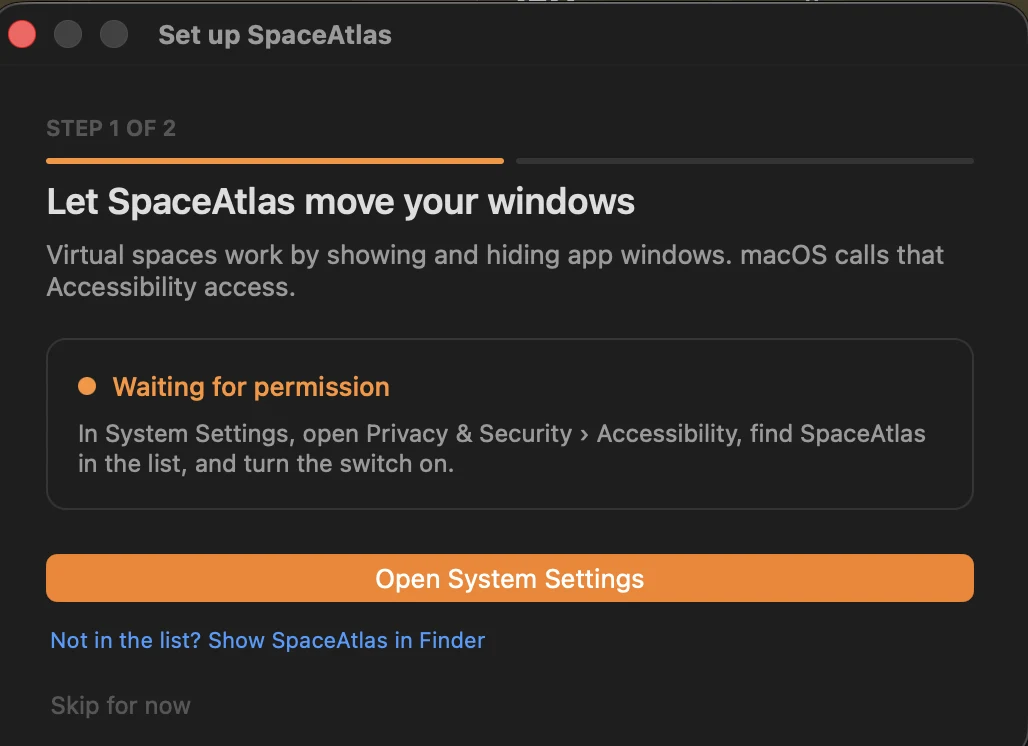
Set up SpaceAtlas
Grant Accessibility and Input Monitoring, one step at a time.
SpaceAtlas asks for Accessibility and Input Monitoring on first launch and tells you when each one is granted.
SpaceAtlas runs from your menu bar. Click the icon to ask where the front window should go. Right-click it to open the SpaceAtlas panel:
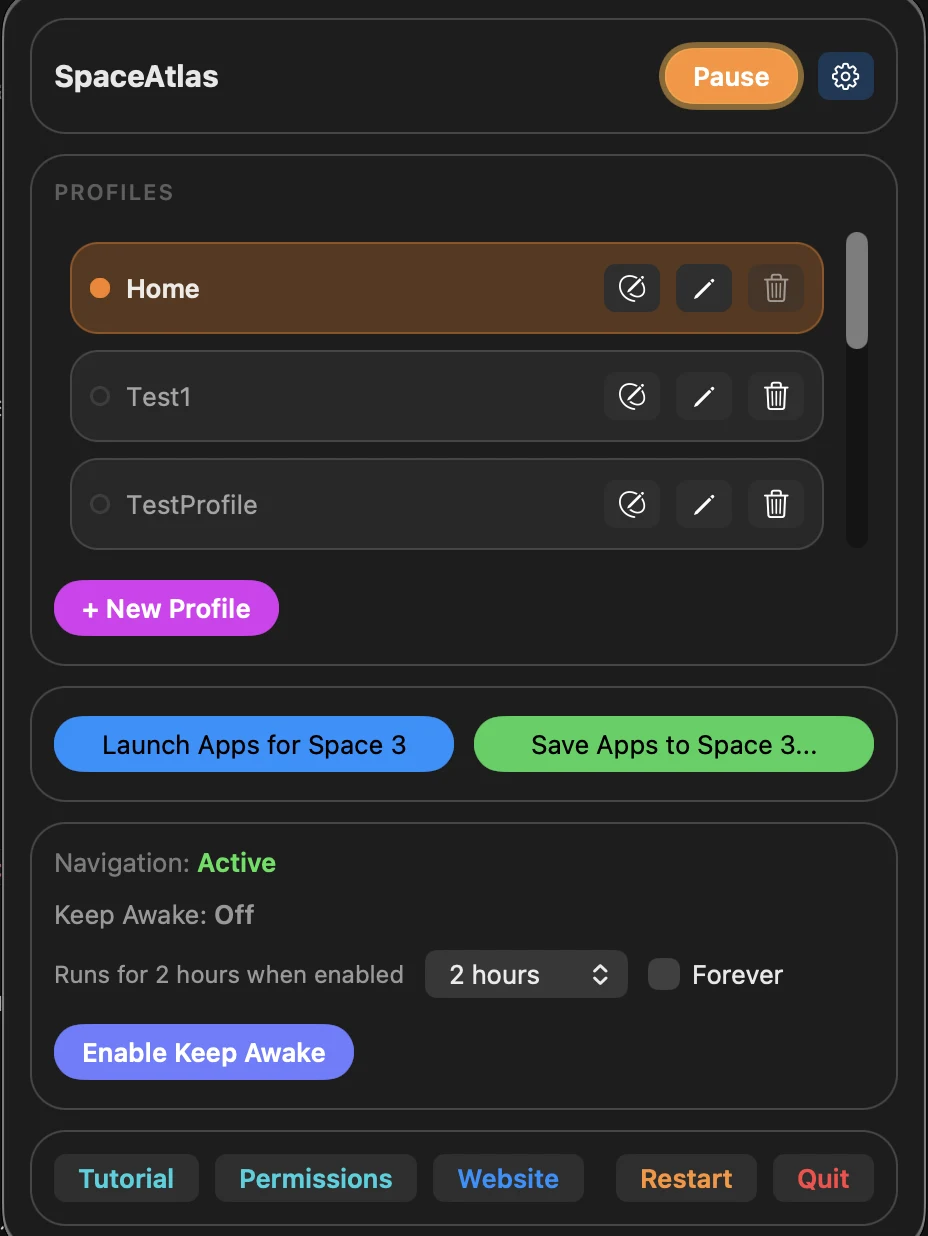
Menu bar panel
Right-click the menu bar icon for profiles, apps, and Keep Awake.
The menu bar panel is your quick-access hub for pausing, switching profiles, launching apps, and Keep Awake.
Map Editor
Settings → Map Editor is where you build your map. Each profile has a 20×20 grid, and Space 1 starts at the centre, [10,10]. The editor shows only the part of the grid you use, plus a small margin. Tick Whole grid to see all 20×20 cells, or Coordinates to show the rulers.
A new space takes the lowest free space number. The On this map panel on the left counts your spaces and portals.
Right-click a space and pick one of four behaviours under What this does:
When you turn a space into a portal, SpaceAtlas asks where it should lead: Somewhere on this map, Into another profile, Wherever I was last, or Back the way I came. The last two follow your movement instead of pointing at a fixed cell, which makes them handy as a "back" button.
A Wormhole is a one-way link inside the current profile. A Gateway works the same way but leads into another profile — useful for linking shared spaces between a Work and a Home setup. A wormhole cannot lead into another wormhole.
A Nexus is a directional hub: entering from the left, right, top, or bottom can each lead somewhere different. Right-click a nexus and choose Edit the four sides… to open the Nexus Configuration window. Each side can pass straight through, act as a wormhole or gateway, or go to the last active or previous space. At least one side must be set.
A space can cover several cells. Moving into it is a normal move; moving on through it carries you across its cells and out the far side, and moving back the way you came returns you to where you entered from. Right-click a multi-cell space to choose how it is entered:
Use Add Cells… and Remove Cells… in the same menu to reshape it cell by cell.
Quick Jumps take you to a space from anywhere with ⌘1 through ⌘9. Right-click a space and choose Jump key to give it a free number. The Quick Jumps panel on the right lists what is assigned in this profile.
Profiles let you keep entirely different maps and switch between them — for example a "Work" profile and a "Home" profile. Pick a profile from the Profile menu at the top of the Map Editor to switch to it. Use Save New Profile to start a new one from the current map and Delete Profile to remove one you no longer need. You can also switch, rename, and delete profiles from the menu bar panel.
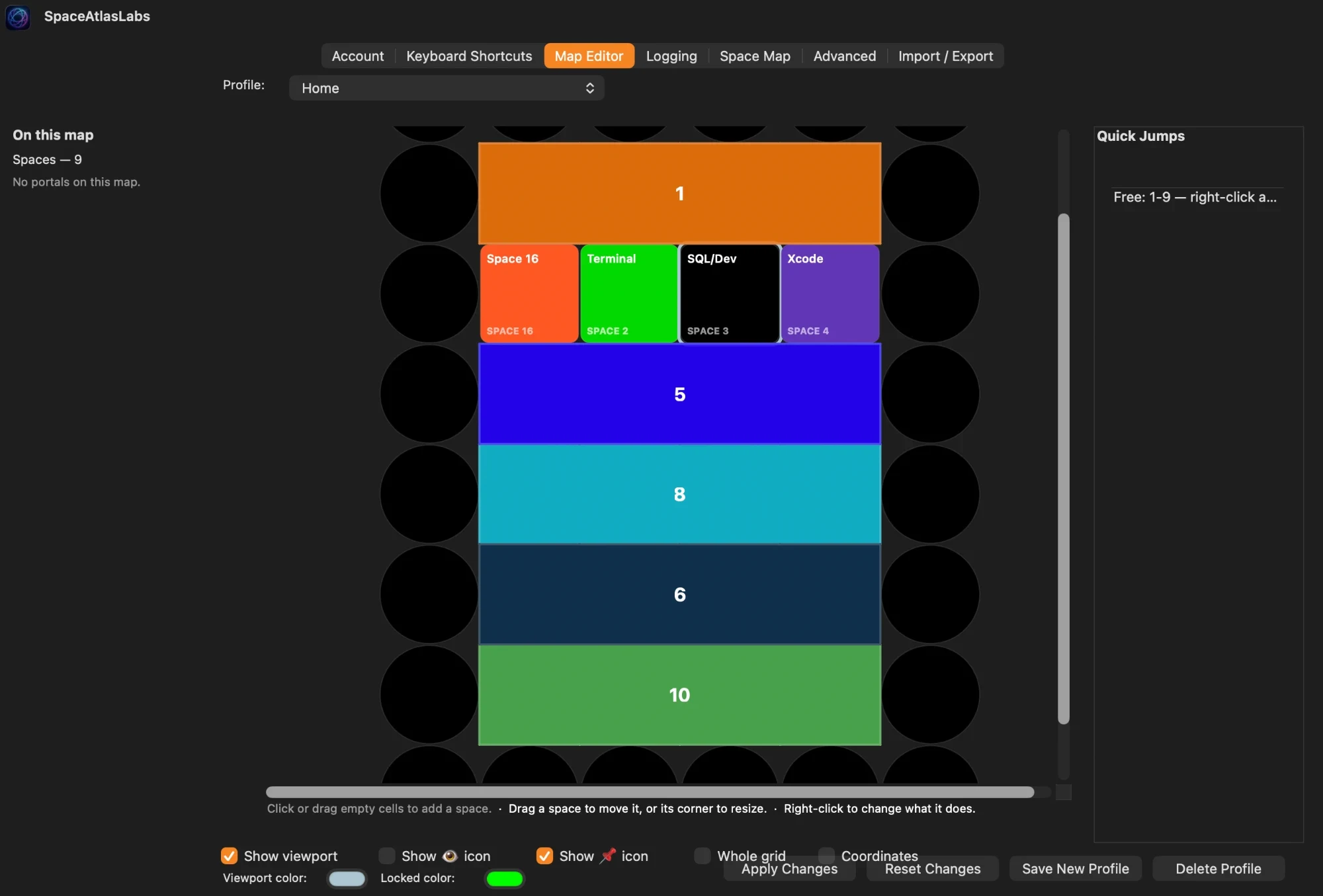
Map Editor
Build your map by clicking and dragging on the grid.
Click or drag empty cells to add a space. Drag a space to move it, or its corner to resize. Right-click to change what it does.
Space Map
The Space Map is a small floating map of your spaces that stays on screen. It highlights the space you are on, shows what each space holds, and carries a row of tools and an inbox for windows that have no space yet.
Settings → Space Map shows a live preview of your map as you change it.
Also on the Space Map tab, Navigation Mode decides what happens when the next cell in your direction is empty:
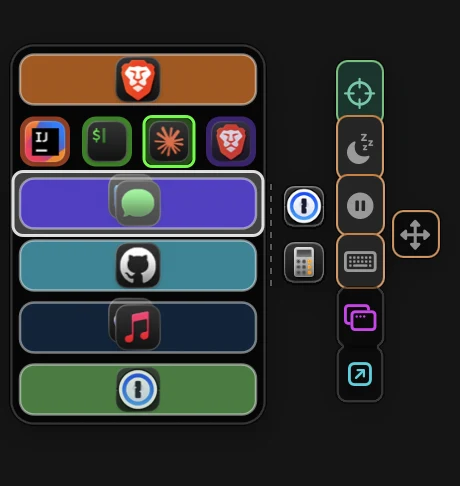
Space Map
The Space Map with app icons on each space, the inbox beside it, and the tool buttons on the right.
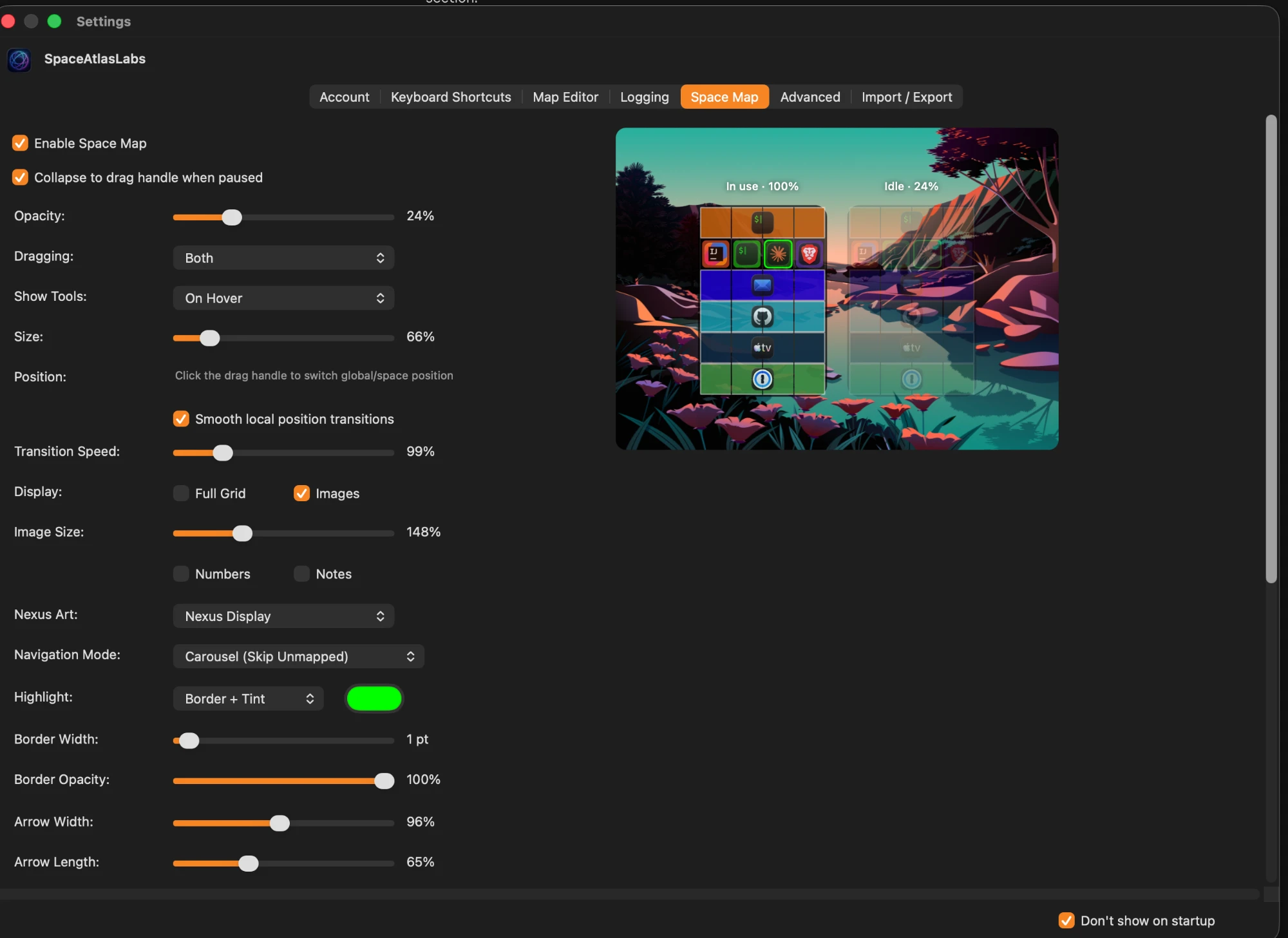
Space Map settings
Configure opacity, size, dragging, tools, display, highlight, and navigation mode.
The Space Map tab previews your map in use and at its idle opacity.
Where Windows Go
A space holds windows, and a window can live on several spaces. Adding a window to a space never takes it off another one — it only leaves a space when you take it off.
When a window appears that SpaceAtlas does not know yet, it asks once where it should live. It only decides on its own when there is a single possible answer: an app with one window that is set up on exactly one space. Open the prompt yourself at any time by clicking the menu bar icon, with the Where Does This Window Go button on the Space Map, or with ⌃⌥W.
Windows that are on no space collect in the inbox next to the Space Map, one icon per app. Click an icon to Show here (show the window on this space without assigning it), Assign… it with the placement prompt, or Close it.
Closing a window or quitting an app keeps the app on its spaces. The space lists it as having no open window, and when you open it again it comes back where it belongs.
Each time SpaceAtlas starts, it looks at every open window once so the inbox and your spaces are up to date. You may see apps from other spaces appear briefly while it checks them.
With Follow Focused Saved Windows on (Settings → Advanced → Window Behavior), clicking or ⌘-Tabbing to a window saved on another space takes you to that space.
A window in native macOS fullscreen takes over its space: the space gets two stops, the fullscreen window and the desktop, and the arrow keys move between them. Turn this off with Follow Native Fullscreen Windows in Settings → Advanced → Window Behavior.
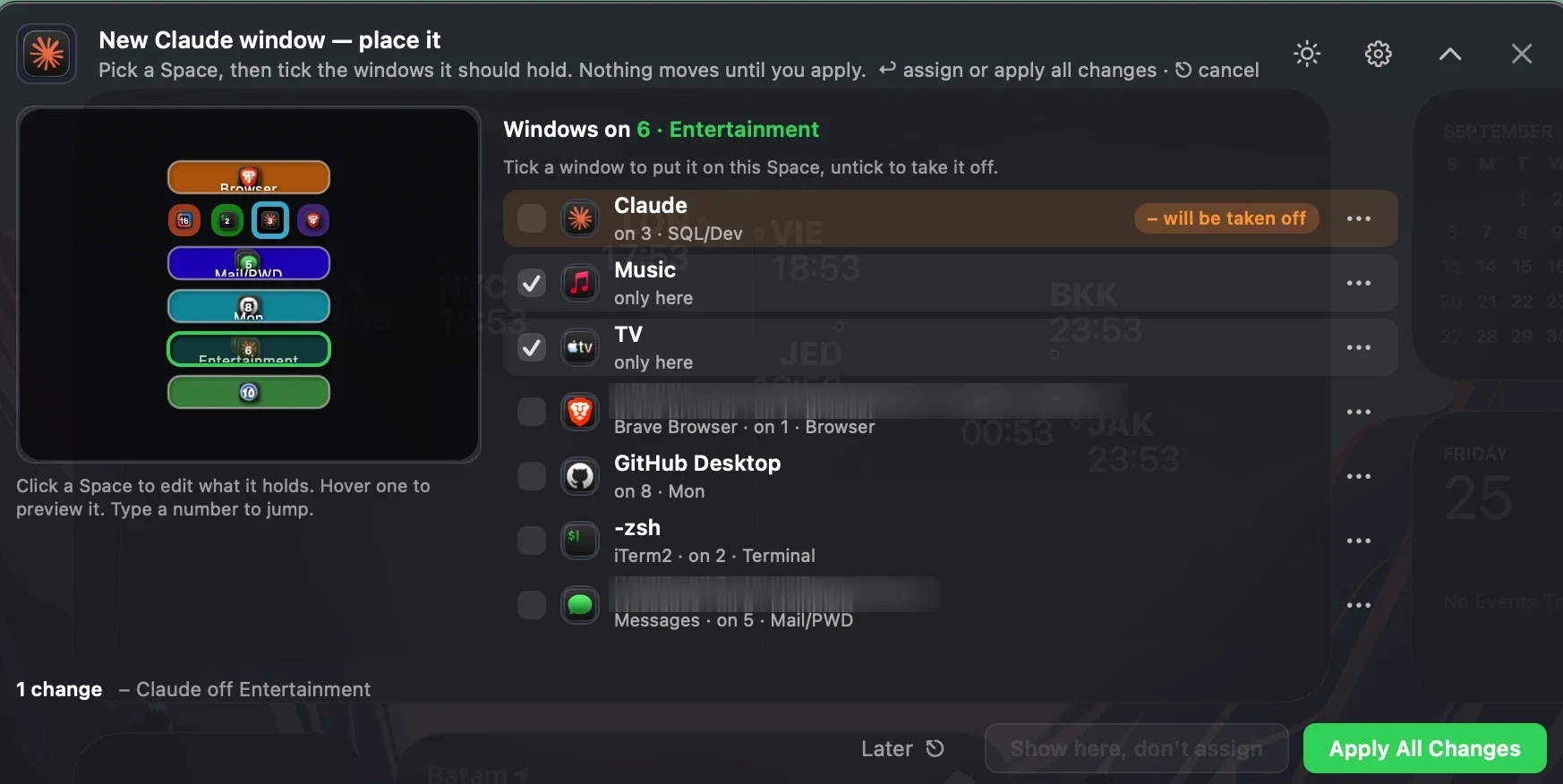
Placement prompt
Tick the windows a space should hold, then apply.
Click a space on the map, tick the windows it should hold, and apply. Nothing moves until you do.
Keyboard Shortcuts
The Keyboard Shortcuts tab in Settings lists every action SpaceAtlas offers. Each one can have keyboard shortcuts, trackpad or mouse gestures, or both.
Actions are grouped on the left and can be searched by name, or by pressing a shortcut to find what uses it. Select an action to see what it does and its bindings on the right.
Save Apps to Space, Quick Save Apps to Space, Toggle Space Map, Restart SpaceAtlas, and Toggle Test Mode have no shortcut until you give them one.
While the placement prompt is showing, ↩ assigns or applies, ⎋ means Later, and the number keys pick a space by its number. The rest of the time these keys reach your apps as usual.
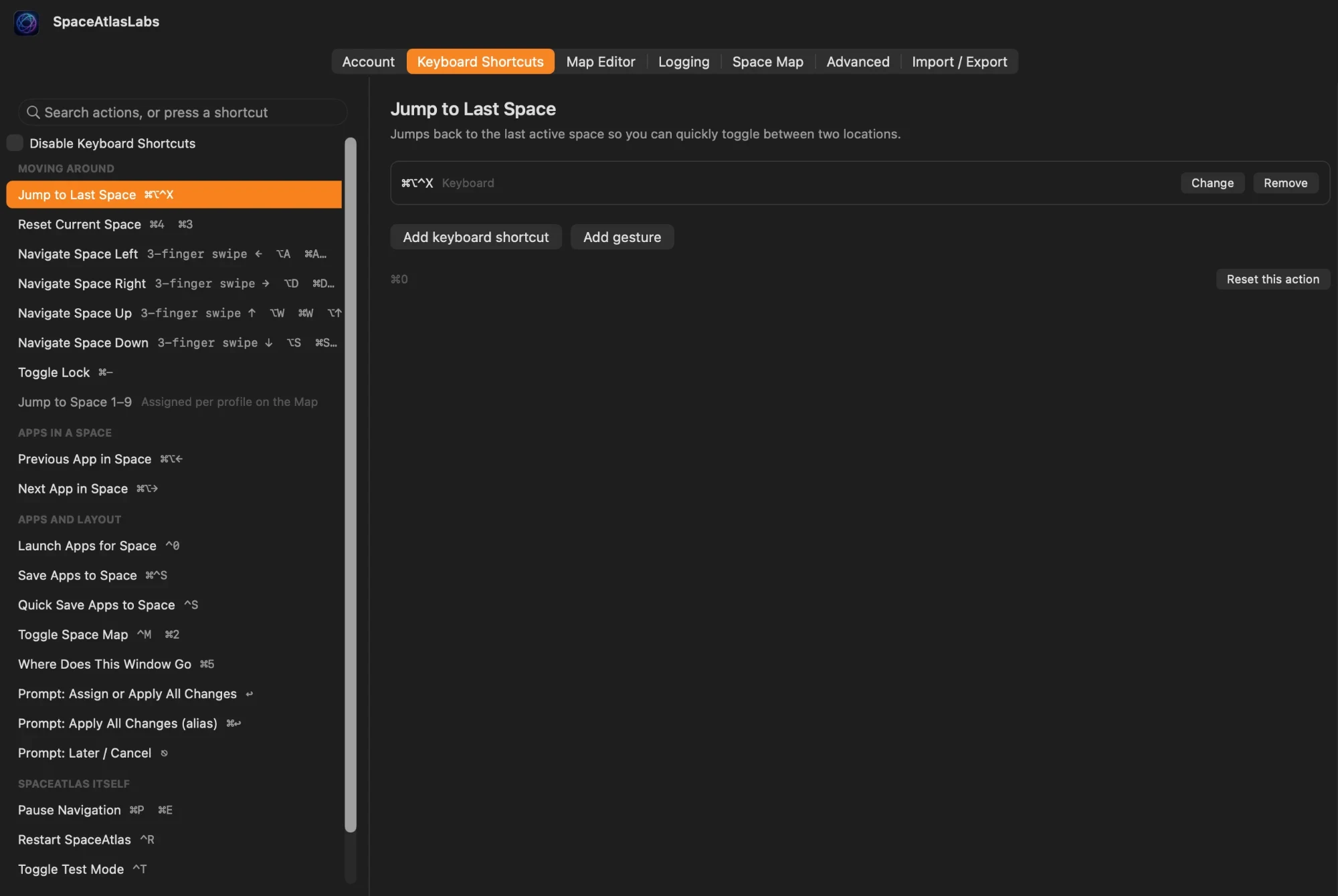
Keyboard Shortcuts settings
Search actions on the left, change their bindings on the right.
Select an action to see what it does, then add, change, or remove its keyboard shortcuts and gestures. The bindings in this screenshot are customised; the defaults are listed on the left.
Settings Tabs
Settings has seven tabs: Account, Keyboard Shortcuts, Map Editor, Logging, Space Map, Advanced, and Import / Export. The last three cover backups, diagnostics, and low-level behavior.
Save your setup before experimenting or moving to another Mac.
Use the Logging tab when you need more visibility into what SpaceAtlas is doing.
Video Tutorial
We are working on a video tutorial that will walk you through setup, key workflows, and tips for getting the most out of SpaceAtlas. Until then, the tutorial built into the app covers the same ground.
A full video guide will be embedded here once it is ready.
Account and License
SpaceAtlas uses passwordless sign-in. You sign in with the email address you used to purchase or start your trial, and verify with a one-time code sent to your inbox.
The Account tab shows your trial or license status at the top — green when licensed, orange during a trial or grace period, red when sign-in is required — along with the email you are signed in with. Software Updates further down shows the installed version.
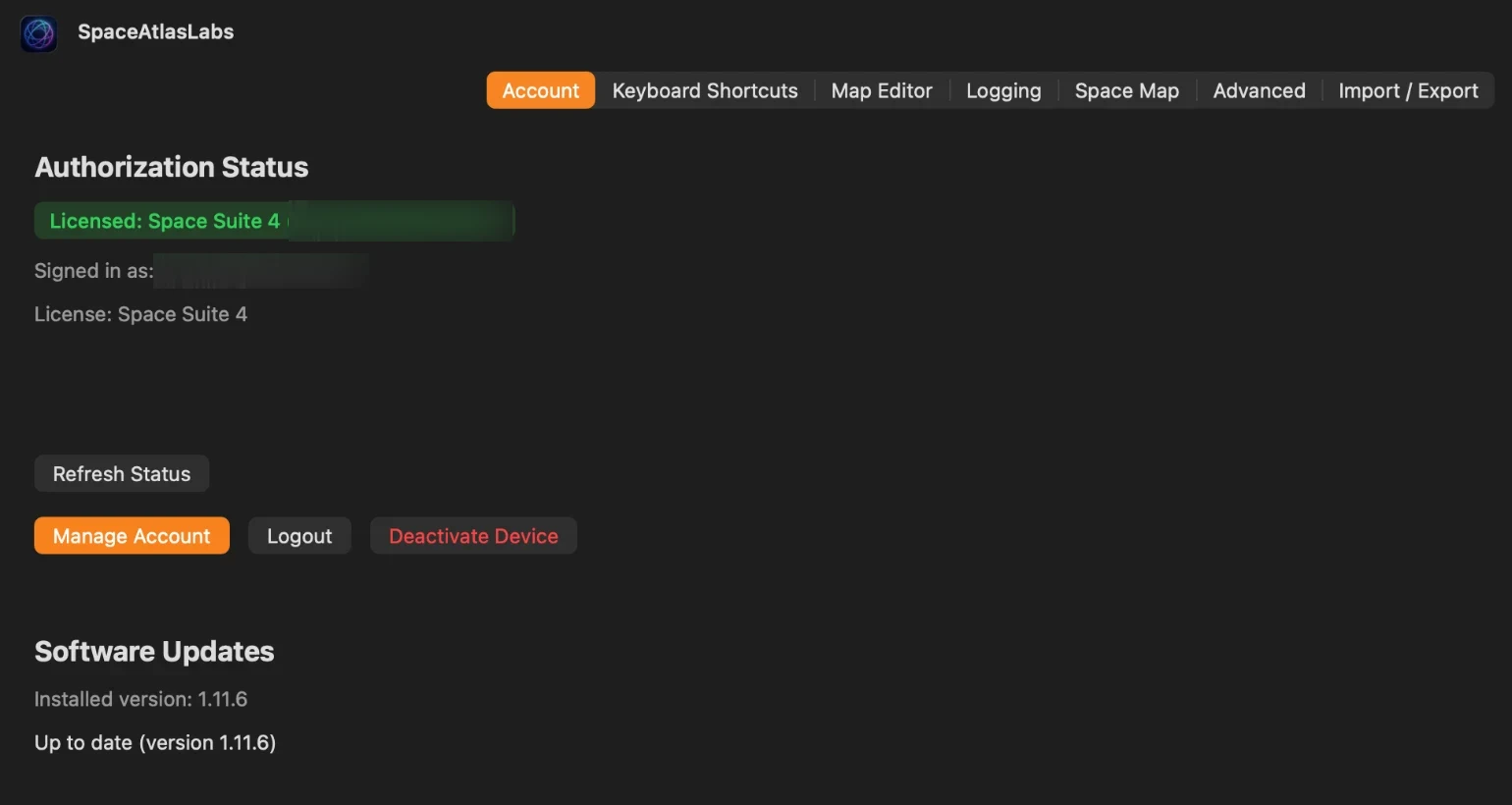
Account tab in Settings
Shows authorization status, sign-in, and account management buttons.
The Account tab is your central place for signing in, checking your license status, and managing this Mac's activation.
Device Management
Your account page at gives you an overview of your licenses, devices, and downloads. You can reach it by clicking Manage Account in the app or by signing in on the website directly.
Each license shows its status, seat usage, activation and expiry dates, and your last payment. Key details at a glance:
A Space Suite license lists each app separately, with its own seats, devices, and download.
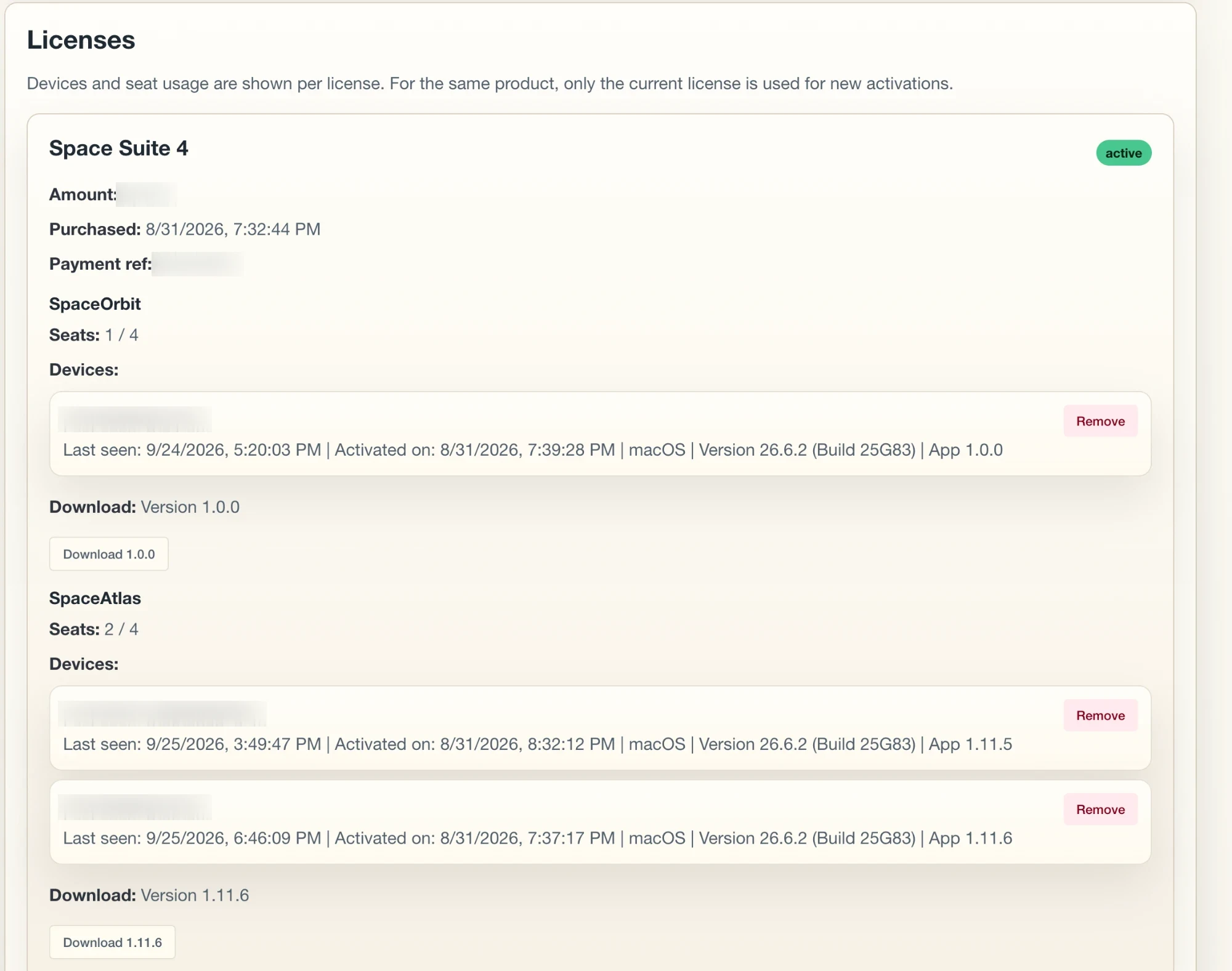
Account page on the website
Shows license details, the device list with removal, and downloads.
Your account page is the central place to manage devices, download updates, and renew your license.
Help and FAQ
If you have questions or run into issues, these resources can help.
Find answers to common questions about pricing, licensing, system requirements, and how SpaceAtlas works.
Reach out to our support team if you need help with your account, have a technical issue, or want to share feedback.
If you are reporting a technical issue, please include your log files. Go to Settings → Logging, set the log level to Debug (Everything), reproduce the issue, then click Open Log Folder and attach the logs to your email. The same tab sets how many days logs are kept and has Delete All Logs to remove them.
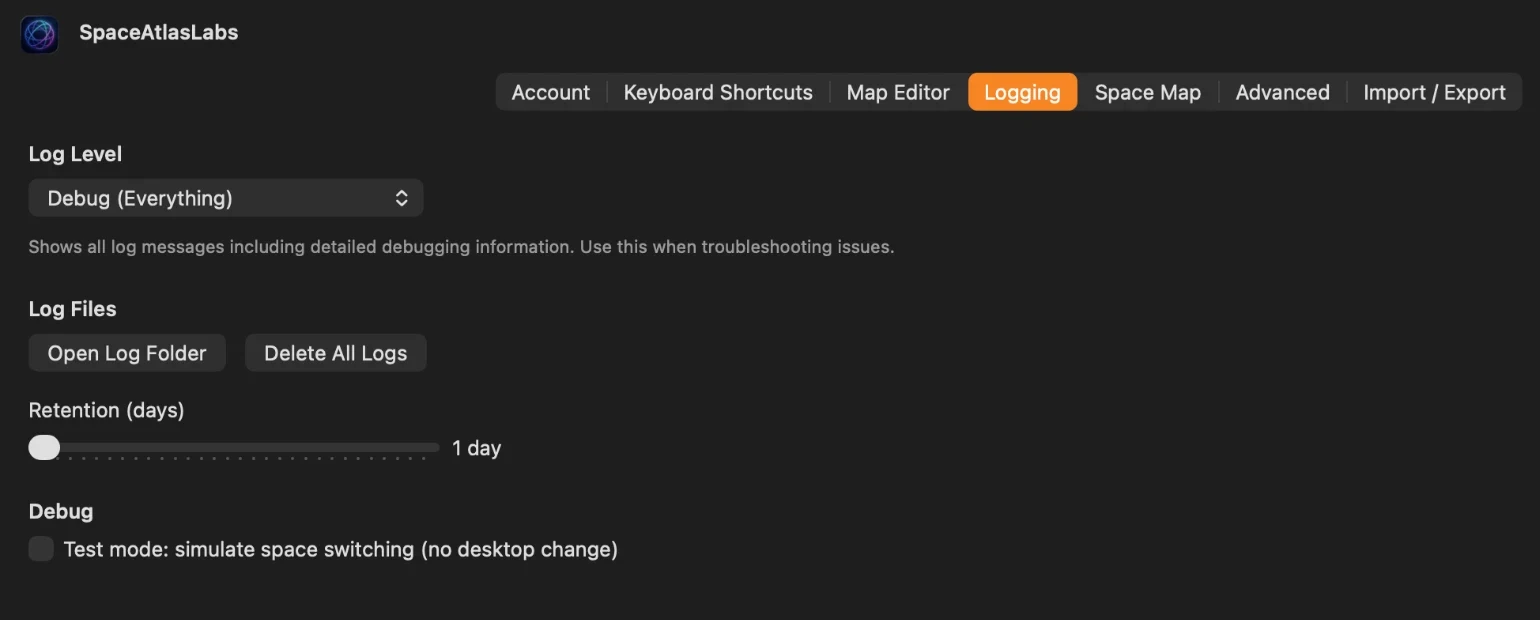
Logging settings
Set the log level and access log files.
Compatible setup
Chip: Apple Silicon (M1, M2, M3, M4, or newer)
Operating system: macOS 14.1 or newer