Grid-based workspace organization
Arrange your virtual desktops in a two-dimensional grid. Navigate spatially instead of scrolling through a flat row of spaces.
Product guide
Overview
SpaceAtlas is a grid-based virtual desktop manager for macOS. Instead of the linear row of desktops that macOS provides, SpaceAtlas lets you arrange your workspaces in a spatial grid and navigate between them in any direction — up, down, left, or right.
Arrange your virtual desktops in a two-dimensional grid. Navigate spatially instead of scrolling through a flat row of spaces.
Switch spaces instantly with keyboard shortcuts. No swiping, no Mission Control — just direct movement to the space you need.
Runs natively on Apple Silicon with minimal resource usage. Integrates with macOS seamlessly and stays out of your way.
Quick Start
SpaceAtlas uses a standard macOS installer and includes a built-in onboarding tutorial that walks you through setup on first launch.
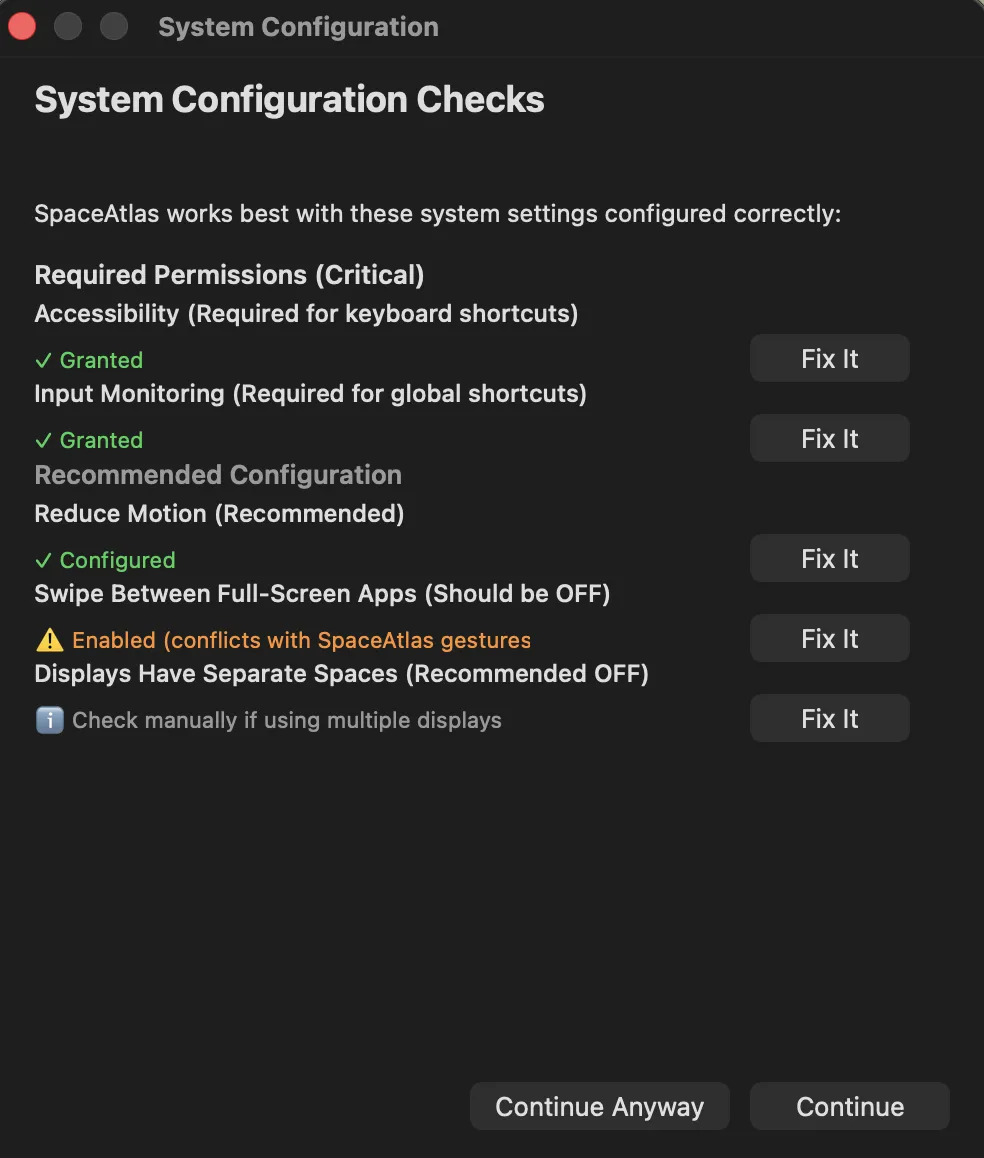
System Configuration check screen
Shows the permissions and settings SpaceAtlas needs to work correctly, with one-click "Fix It" buttons.
SpaceAtlas checks your system configuration on first launch and helps you fix any issues before you start.
SpaceAtlas runs from your menu bar. Click the icon to open the dropdown, which gives you quick access to:
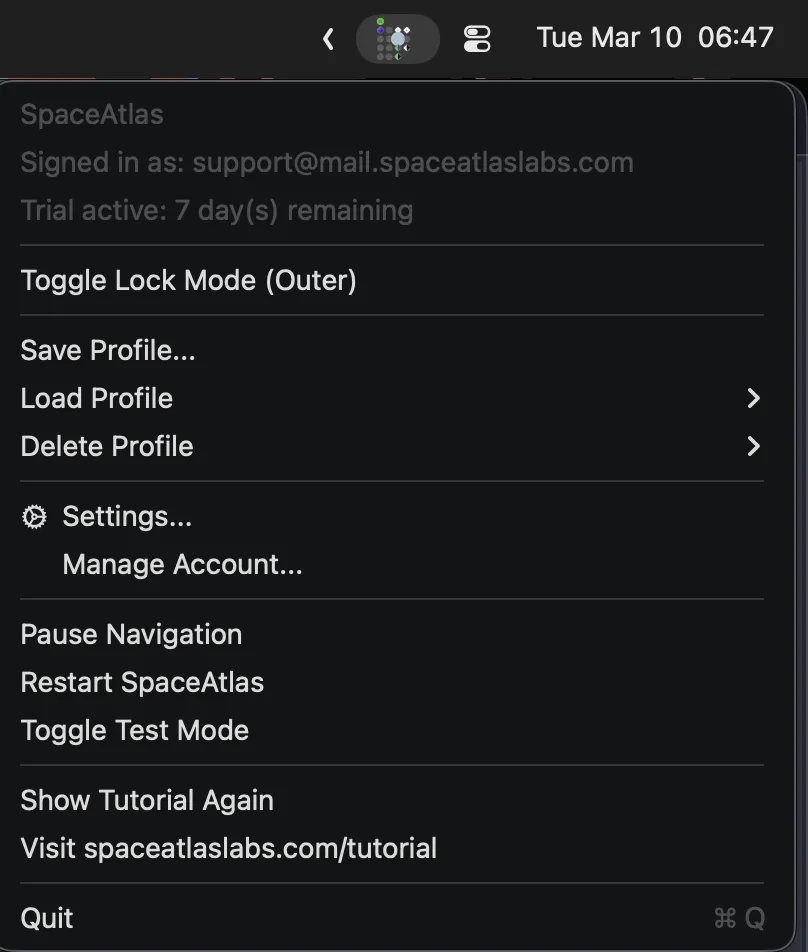
Menu bar dropdown
Access all key actions from the menu bar icon.
The menu bar dropdown is your quick-access hub for toggling navigation, switching profiles, and opening settings.
Space-Matrix Mapping
The Space-Matrix Mapping tab is where you build your virtual desktop grid. It shows a 20x20 matrix — click any position to assign a space to it. Your spaces are listed on the left with customizable colors, icons, and notes. Space 1 starts at the center position [10,10].
Profiles let you save entirely different grid configurations and switch between them. For example, you might have a "Work" profile with your development tools laid out in one arrangement, and a "Home" profile with a different setup.
Use Save New Profile to capture the current setup, Load Profile to switch instantly, and Delete Profile to remove an outdated layout when you no longer need it.
SpaceAtlas supports six core mapping types when you build spaces, portals, and larger galaxy regions:
Last Active Space and Previous Space are especially useful when you want portal behavior that reacts to context instead of a fixed destination.
Quick Jumps let you instantly teleport to a specific space from anywhere in the grid using Cmd+1 through Cmd+9. Right-click a space on the grid and select "Assign Quick Jump" to set it up. Quick Jump assignments are shown in the panel on the right.
Bookmarks give you twelve additional direct-jump slots. Assign frequently used destinations to F1 through F12 so you can jump there without stepping through the grid one move at a time.
A Wormhole is a one-way teleport link between two positions within the same profile. When you navigate into a wormhole, you jump directly to its target space instead of the adjacent grid position. You can also set dynamic targets:
Gateways work like wormholes, but connect across different profiles. Navigate into a gateway and you'll jump to a space in another profile — useful for linking shared spaces between your Work and Home setups.
A Nexus is a directional hub. Each direction you enter from (left, right, up, down) can lead to a different destination — either a space or a gateway. This makes the Nexus a powerful routing point where a single grid position can connect to four different places depending on how you navigate into it.
For more complex direction-aware routing, use the Nexus Wizard. Walkthrough mode guides you through one entry direction at a time, while Summary mode shows the full routing setup together so you can review and edit every path from one screen.
A Galaxy groups multiple contiguous cells into a single unified entity. Any supported mapping type — Space, Wormhole, Gateway, Nexus, Last Active Space, or Previous Space — can become a Galaxy, letting it span a region of the grid rather than a single position.
Moving into a Galaxy is a normal navigation move that lands you on the entry cell. From there, additional moves navigate within the Galaxy or out of it:
The entity type determines what happens on entry: a Galaxy-Space switches to that desktop space, a Galaxy-Wormhole or Galaxy-Gateway teleports you immediately, and a Galaxy-Nexus routes based on the direction you entered from — exactly like a regular Nexus.
When you create a Galaxy, you also choose its navigation mode: Edge or Memory. Those modes control how SpaceAtlas resolves movement through the larger region, so pick the one that matches whether you want edge-driven or memory-driven behavior.
To create a Galaxy, right-click any cell and choose Create Galaxy. Click adjacent cells to grow the selection (minimum 2 cells), then right-click or press Enter to finish and choose the entity type.
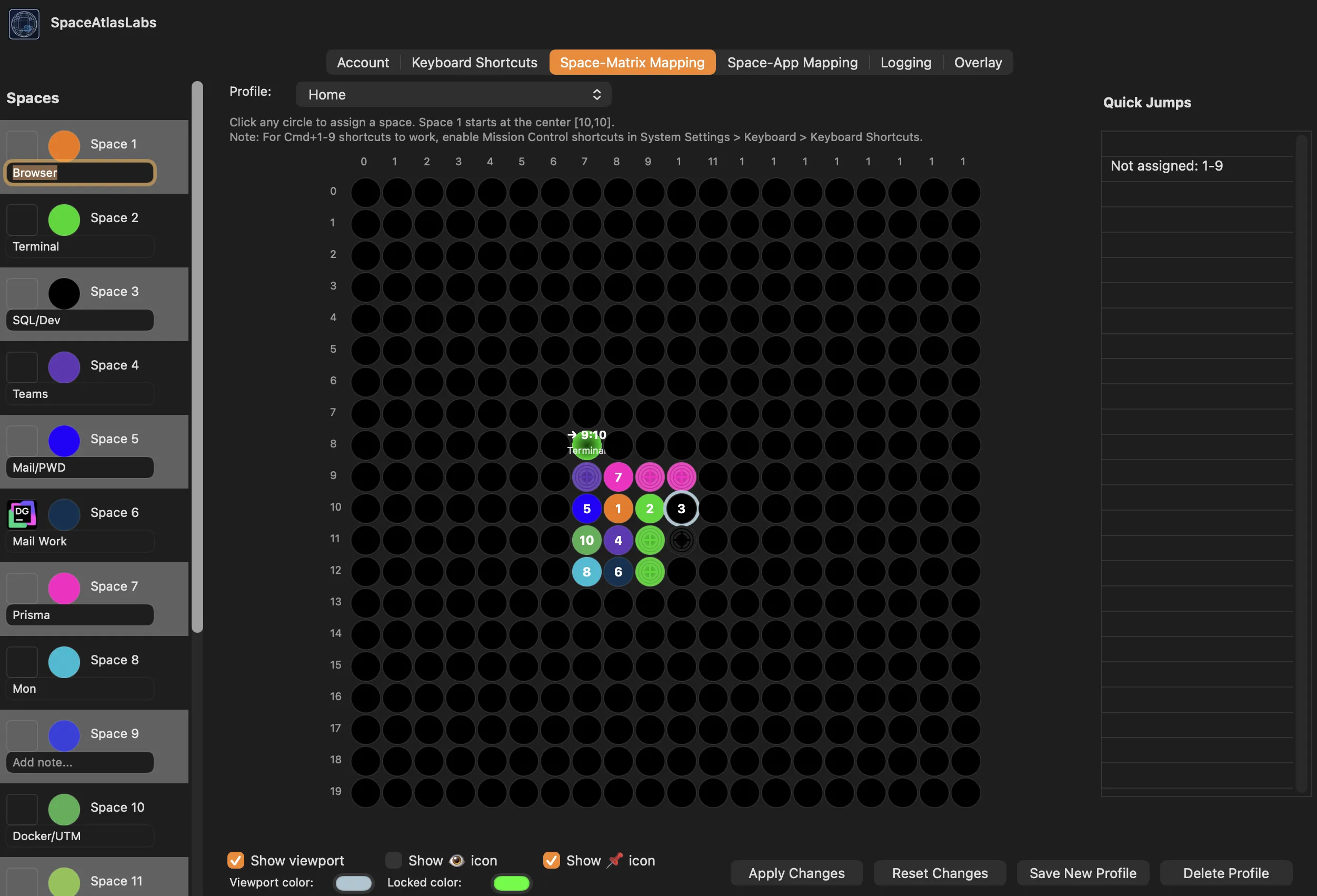
Space-Matrix Mapping
Configure your grid layout and assign spaces to positions.
Click any circle on the grid to assign a space. Right-click for advanced options like wormholes, gateways, nexus, galaxies, and quick jumps.
Keyboard Shortcuts
The Keyboard Shortcuts tab in Settings lets you configure exactly how you move between spaces. Every action can be triggered by a keyboard shortcut, a trackpad/mouse gesture, or both.
Each action in the list shows its current shortcut binding. Click the info icon next to any action to see a description of what it does.
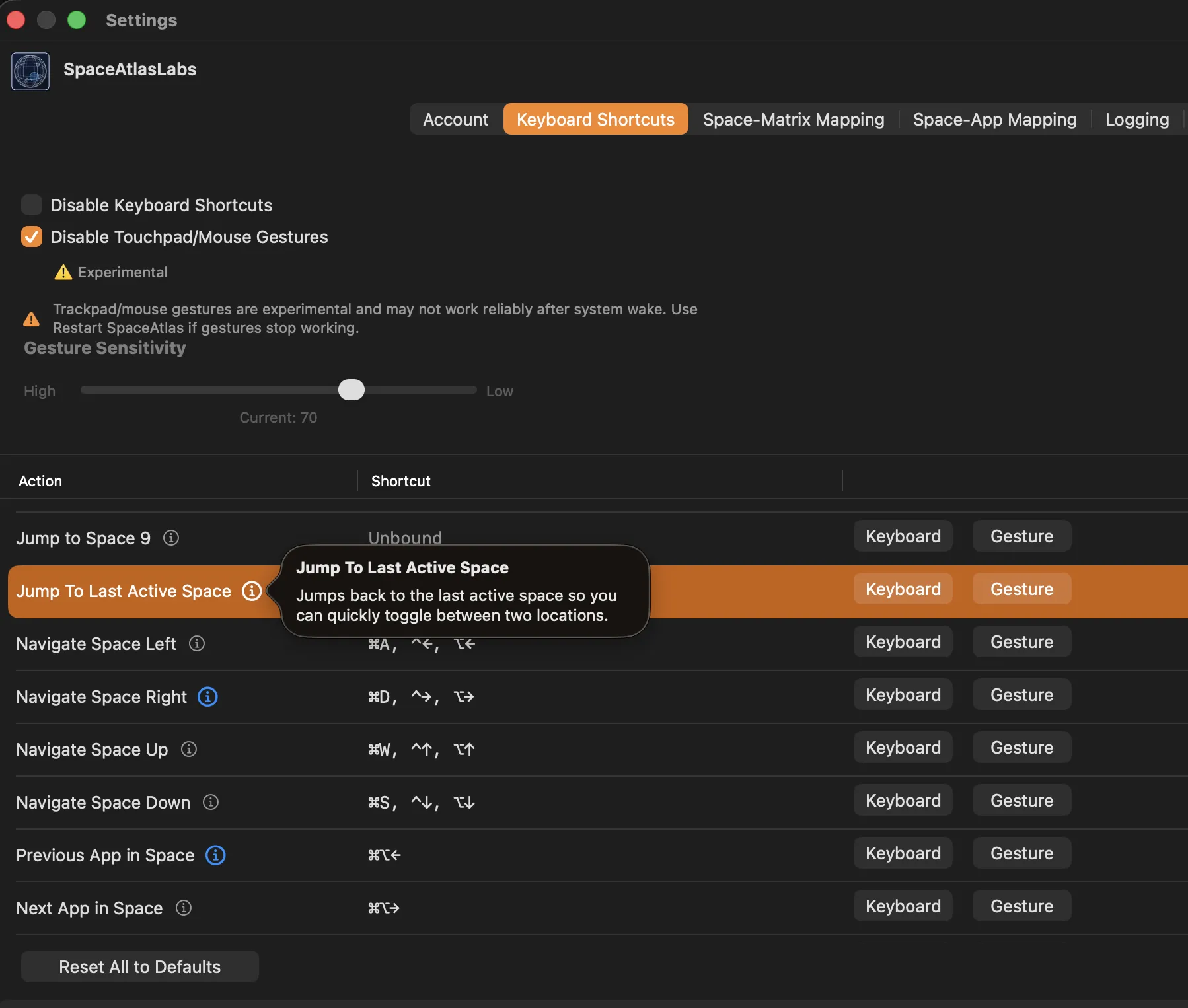
Keyboard Shortcuts settings
Configure keyboard shortcuts and gestures for each navigation action.
Click the info icon next to any action to learn what it does. Use the Keyboard and Gesture buttons to set or change bindings.
Space-App Mapping
Space-App Mapping lets you tie specific applications to each space, so your workspace layout stays consistent every time you use your Mac.
Choose between two modes (Manual Assignment is the default):
When Auto Detection is active, SpaceAtlas observes which app is focused on each space and builds a mapping over time:
The result is a mapping that reflects how you actually use your spaces, without any manual setup.
Toggle Enable app launch on startup/space visit to have SpaceAtlas automatically open the assigned apps whenever you visit a space or start the app.
If this option is disabled, you can still launch the apps assigned to the current space on demand using a keyboard shortcut (default: ⌥L), which can be configured in the Keyboard Shortcuts tab.
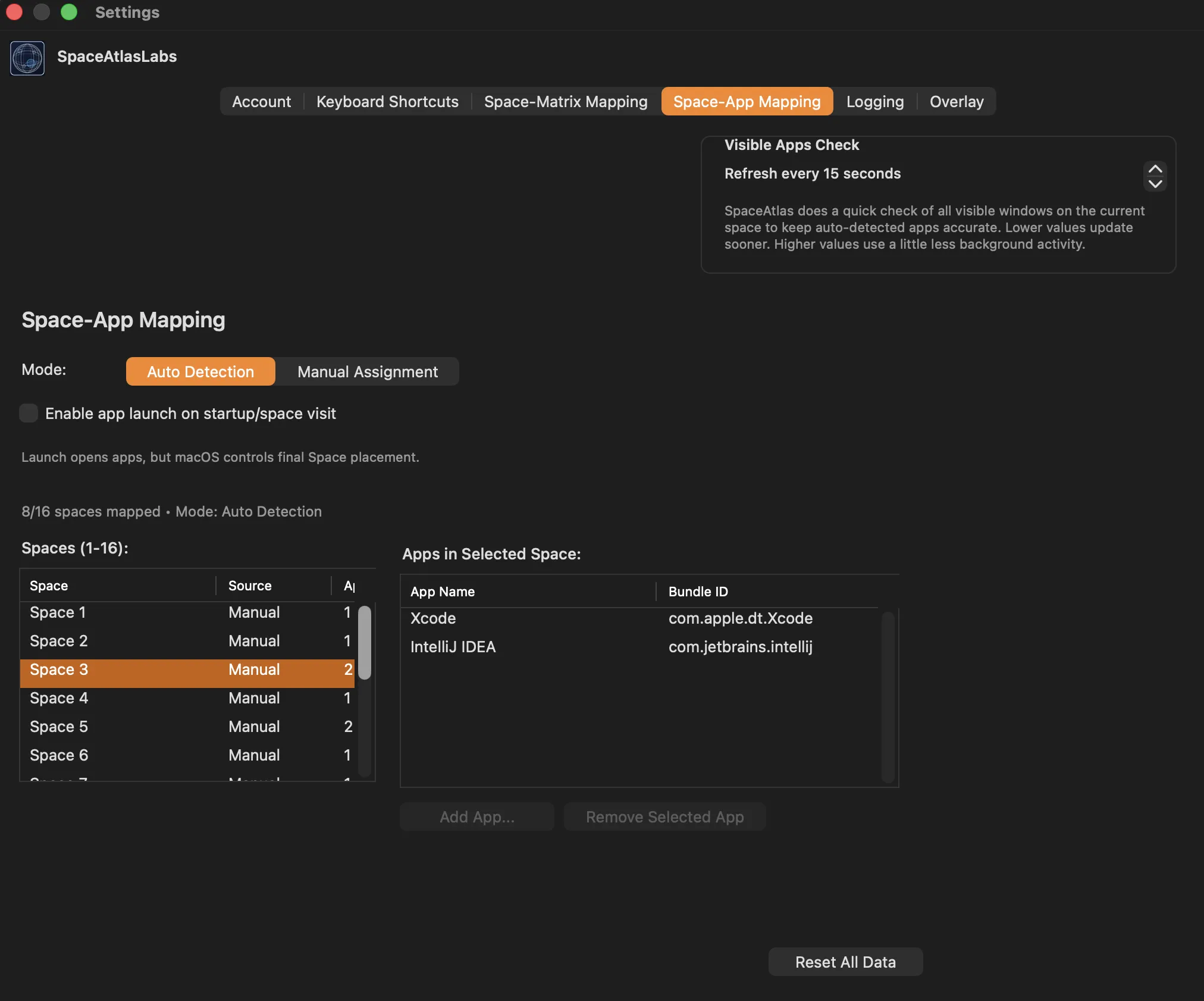
Space-App Mapping settings
Assign applications to each space for a consistent workflow.
Select a space on the left, then add or remove apps on the right. Use Manual Assignment for full control over your layout.
Overlay
The overlay is a visual mini-map of your grid that appears while you navigate between spaces. It shows your current position so you always know where you are and where you can move next.
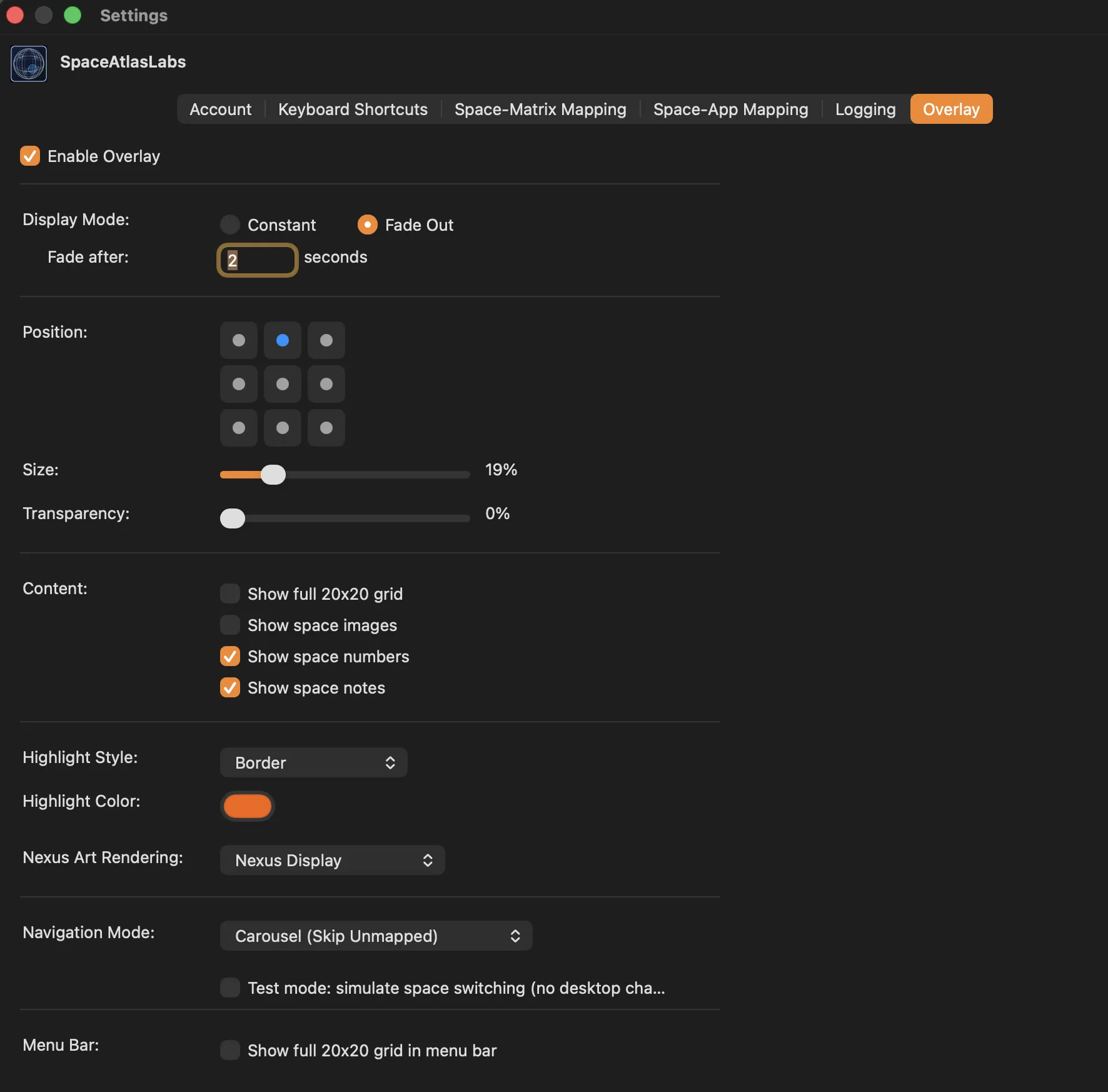
Overlay settings
Configure display mode, position, size, content, highlight style, and navigation mode.
The Overlay tab gives you full control over how the grid mini-map looks and behaves.
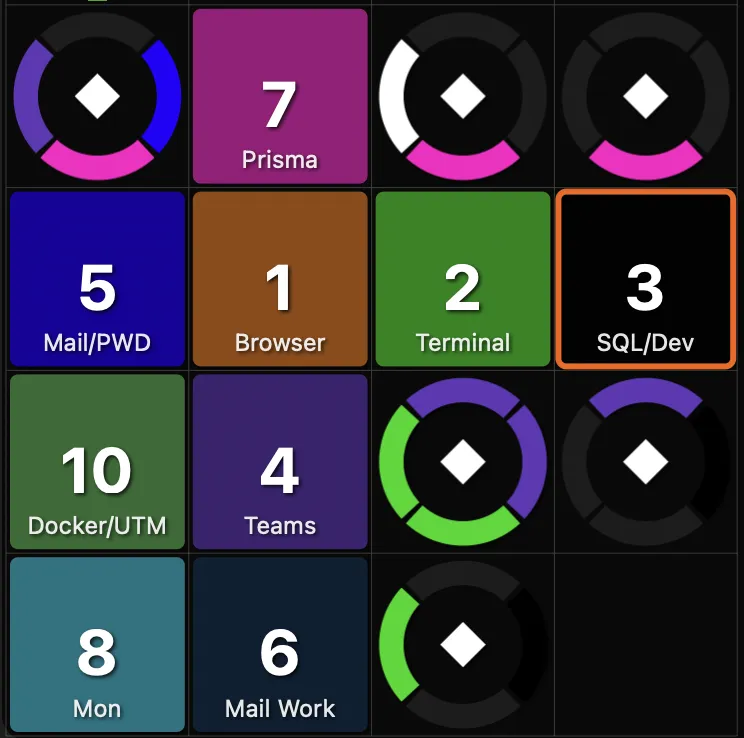
Numbers and notes
Overlay with space numbers and notes.
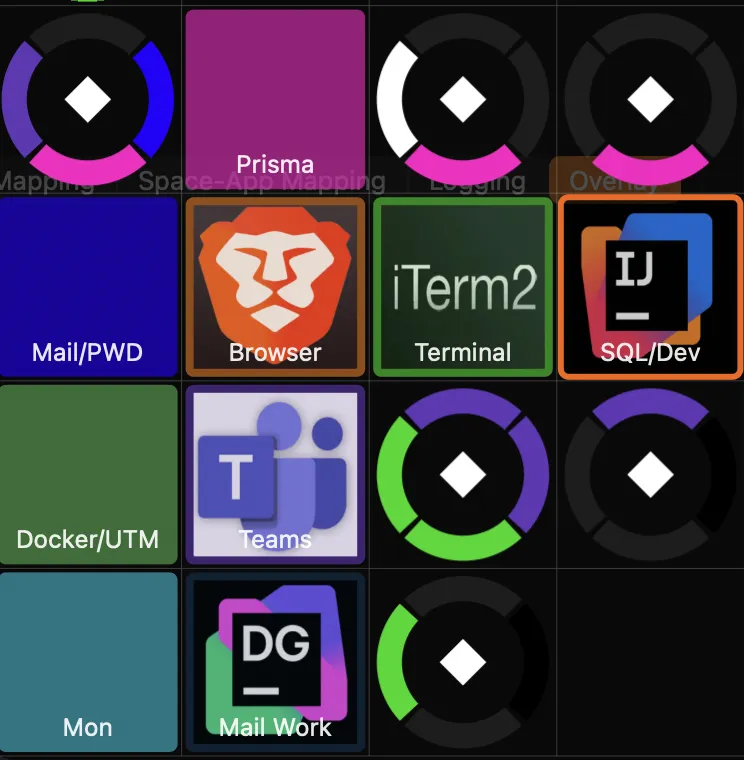
Images and notes
Overlay with space images and notes.
Settings Tabs
Beyond layout, shortcuts, and overlays, SpaceAtlas includes dedicated settings tabs for backup workflows, diagnostics, and low-level behavior tuning.
The Import / Export tab lets you save your setup before experimenting or moving to another Mac. You can export everything or only selected areas of your configuration, then import those settings later.
The Logging tab is a full diagnostics area, not just a support footnote. Use it when you need more visibility into what SpaceAtlas is doing.
The Advanced tab exposes the timing and behavior controls behind features like navigation, auto detection, and switching latency.
Video Tutorial
We are working on a video tutorial that will walk you through setup, key workflows, and tips for getting the most out of SpaceAtlas. Check back later for the full walkthrough.
A full video guide will be embedded here once it is ready.
Account and License
SpaceAtlas uses passwordless authentication. You sign in with the email address you used to purchase or start your trial, and verify with a one-time code sent to your inbox.
Once signed in, the Account tab shows your current authorization status including your trial or license status, the signed-in email, and the app version you are running.
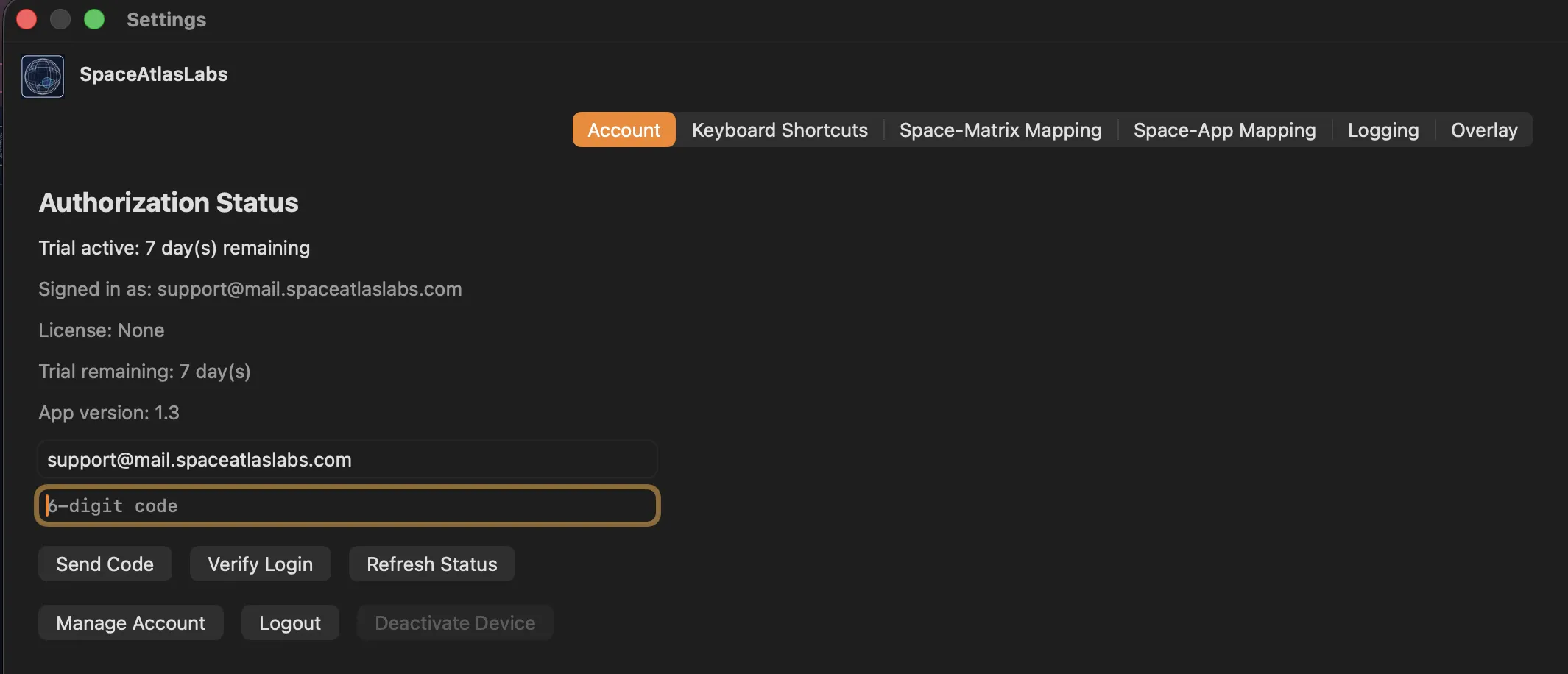
Account tab in Settings
Shows authorization status, sign-in fields, and account management buttons.
The Account tab is your central place for signing in, checking your license status, and managing your device activations.
Device Management
Your account page at gives you a full overview of your session, licenses, devices, and updates. You can reach it by clicking Manage Account in the app or by signing in on the website directly.
Shows your current session details including your Device ID and when your access and refresh tokens expire. Click Refresh Session to extend your session if needed.
Each license shows its status, seat usage, activation and expiration dates, and your last payment amount. Key details at a glance:
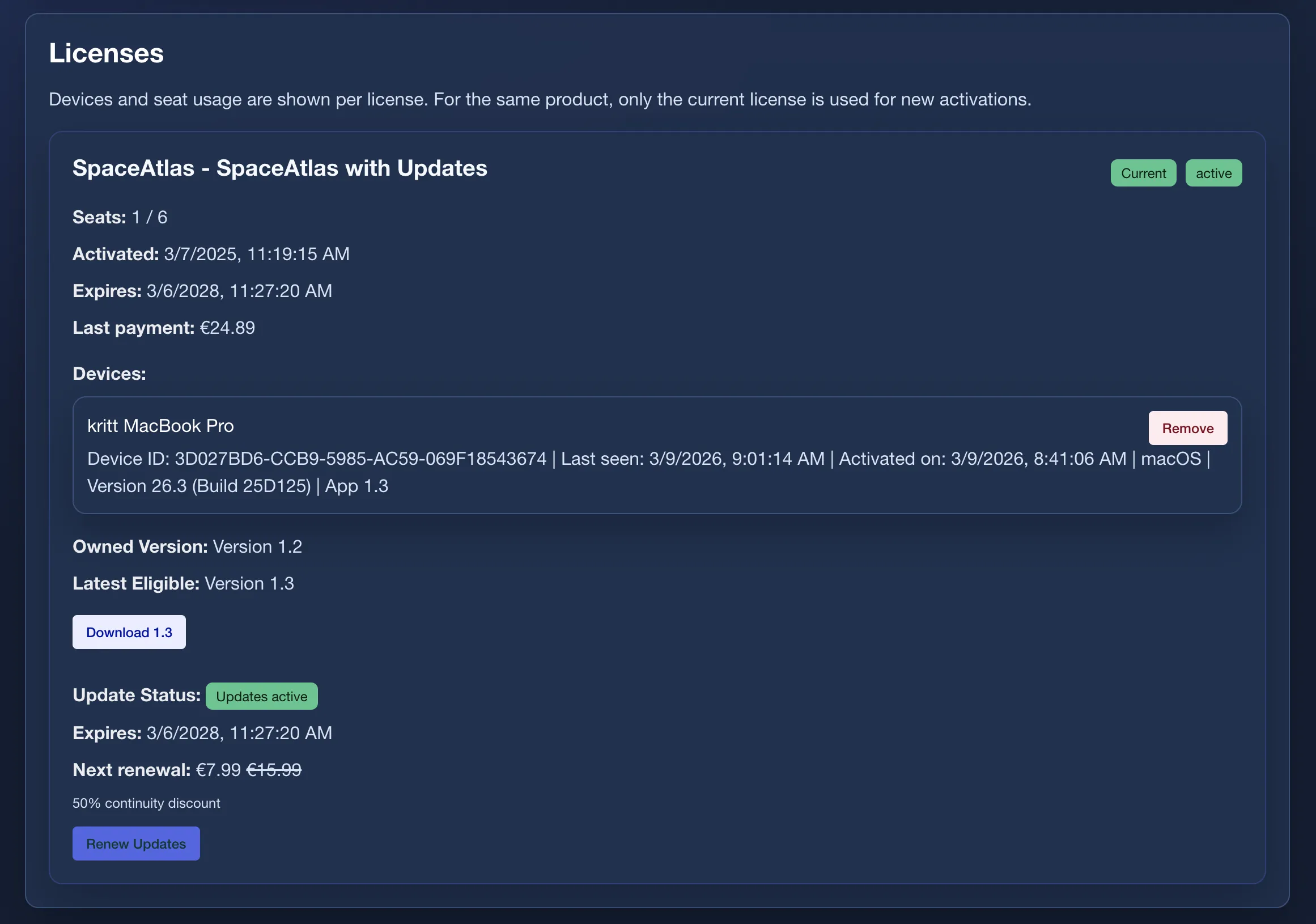
Account page on the website
Shows session info, license details, device list with removal, and update/download management.
Your account page is the central place to manage devices, download updates, and renew your license.
Help and FAQ
If you have questions or run into issues, these resources can help.
Find answers to common questions about pricing, licensing, system requirements, and how SpaceAtlas works.
Reach out to our support team if you need help with your account, have a technical issue, or want to share feedback.
If you are reporting a technical issue, please include your log files. Go to Settings → Logging, set the log level to Debug (Everything), reproduce the issue, then click Open Log Folder and attach the logs to your email. You can set the retention period and delete old logs from this tab as well.
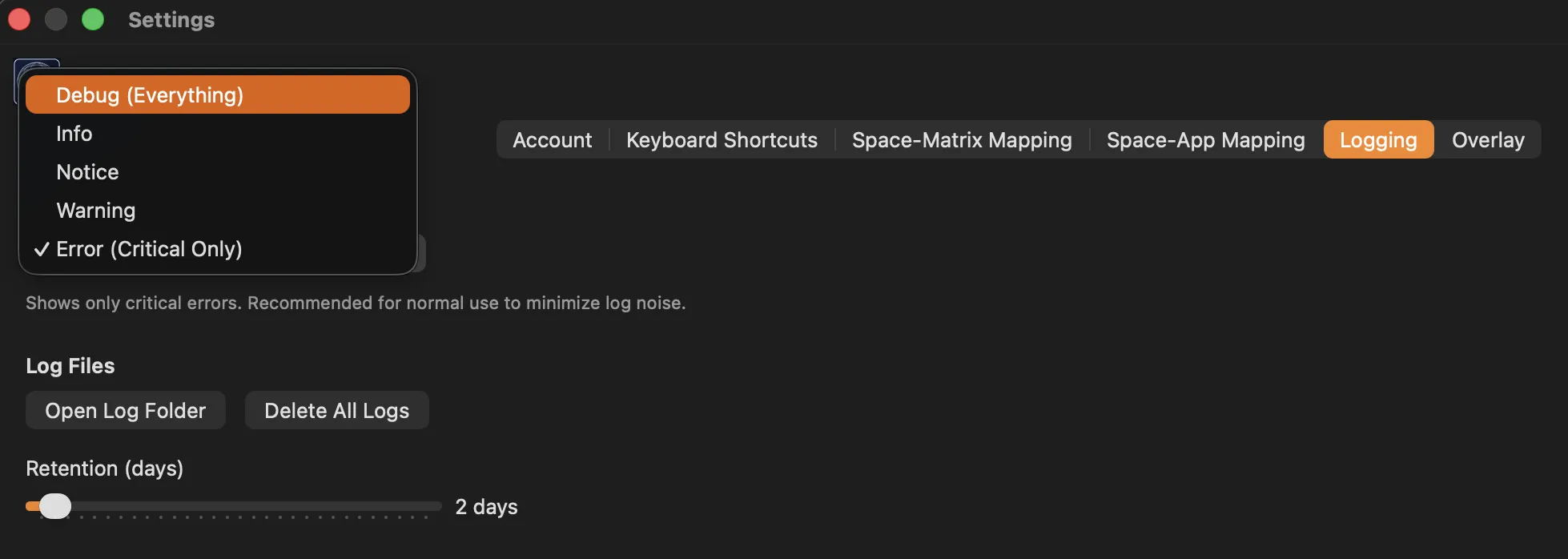
Logging settings
Set the log level and access log files.
Compatible setup
Chip: Apple Silicon (M1, M2, M3, M4, or newer)
Operating system: macOS 15.0 or newer